
Finance can't defend a number that was never captured. Yet too many labor cost records are still rebuilt after the fact, from someone's memory of their week. We build ClickTime to close that gap: capture time where work happens, structure it at the source, and use the words your team already knows. This release does all three.
Everything here shipped September 22 on Team plan and above. Work Types shows how your team's time splits across the work you care about. Connections now captures activity in Microsoft 365 and Google Workspace. Account customization puts your terminology and branding on one page.
Work Types: see where your team's time actually went
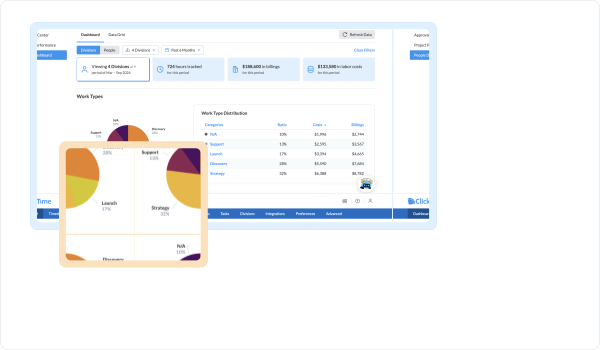
When leadership asks how much of last quarter went to new development versus maintenance, the answer is usually assembled by hand or estimated. Work Types answers it from the data you already collect.
[SCREENSHOT: Work Types mix in the people dashboard, team view]
How it works
Define your own work types, like research, design, build, QA, and maintenance. Then schedule them onto a project as dated phases. Each phase runs from its start date until the next one begins, and every prior phase stays on record.
A project might start in research, move to build once it's funded, and end in maintenance. Each shift is recorded with its date, so when someone asks when a project changed, there's an answer instead of a reconstruction.
The mix appears in the people dashboard you already use, for a whole team or one person, alongside hours, labor costs, and billings.
No extra step for your team
Employees never see Work Types. Hours are classified as they're entered, whether time comes in through Connections or by hand. Nobody picks a category, fills in a field, or learns a new concept.
What it gives finance
- A clear answer to where effort went, by type of work
- A dated record of when each project changed
- The same classification for imported and hand-entered time
One tip: when plans change, update the phase dates. The record is only as accurate as the schedule behind it.
Connections: capture from Microsoft 365 and Google Workspace
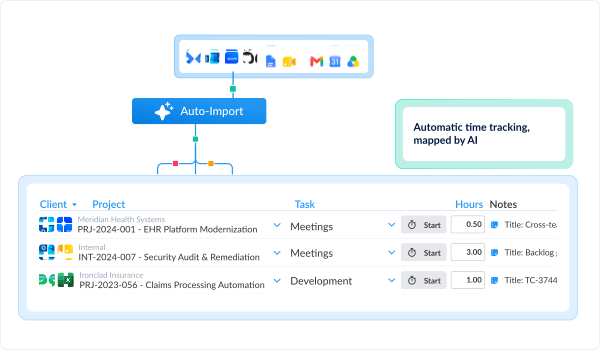
Most work happens in a document, a spreadsheet, or a deck, not only in meetings, tickets, and commits. Hours that never reach a timesheet get estimated at month-end, and the estimate becomes the labor cost record.
[SCREENSHOT: a timesheet with Connections activity waiting to be confirmed]
What's new
Connections launched over the summer with calendars, Jira, GitHub, and Zoom. It now reads activity from:
- Google Workspace: Meet, Docs, Sheets, and Slides
- Microsoft 365: Word, Excel, PowerPoint, OneNote, PDF Viewer, Visio, Loop, Whiteboard, Clipchamp, Access, Publisher, and Project
Setup is simpler too. One admin connects these tools for the whole organization, and admins can now turn Connections on without asking ClickTime to enable it first. Nothing is installed on anyone's machine.
How it works
Connections surfaces what someone worked on, and they confirm it onto their timesheet. Turn on AI mapping, and ClickTime matches that activity to the right project and cost code. With Auto-Import, it fills the timesheet outright. For the fields ClickTime reads and how matching works, see How ClickTime AI maps work to timesheets.
Outputs, not behavior
ClickTime reads outputs: calendar titles, ticket names, commit messages, and document activity. There's no keystroke logging, no browser tracking, and no screenshots. Software that does those things exists. We decided not to build it. Security teams can review the details in the ClickTime Trust Center.
Work that leaves no digital trace, like a site visit, still needs manual entry. Connections covers the rest, so people spend their time confirming rather than reconstructing.
Account customization: timesheets in your team's own terms
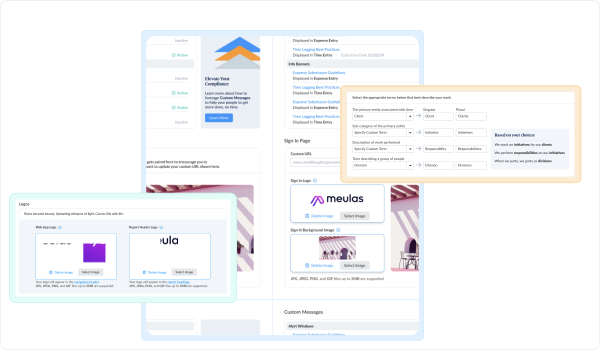
People fill in timesheets correctly when the timesheet uses words they recognize. A law firm tracks matters, an AEC firm tracks jobs, and a nonprofit tracks programs. Now ClickTime can use those words too.
[SCREENSHOT: the Account customization page under Company > Preferences]
Rename what your team sees
- Client becomes Customer or Account
- Project becomes Job or Matter
- Task becomes Activity or Phase
- Division becomes Department or Team
Custom terms are supported as well.
Put your brand on it
Add your logo to the nav bar, sign-in page, and report headers, so reports you send to clients or funders carry your logo instead of ours. You can also set a custom URL, sign-in background and banner images, and custom messages for alerts and info banners.
One page instead of three
These settings used to live across the admin site, Company Preferences, and Advanced. They're now on one page under Company > Preferences, and changes stage until you apply them. Custom URL, logos, and images are admin-only; terminology and messages are open to anyone with Company Preferences access.
Renaming core terms changes what every user sees, so it lands best during implementation or a planned rollout.
Availability
Work Types, the new Connections, and Account customization are available now on Team plan and above.
See Connections live
Join Stephanie Johnson and David Boring on Friday, October 9, at 10am PT / 1pm ET for a working walkthrough. They'll set up a connection start to finish, show what changes on your team's timesheet, and cover AI mapping and Auto-Import. Can't make it? Register and we'll send the recording.
New to ClickTime? See how it works